Public Edit Forms

Although Podio allows creating webforms quite easily, these can only be used to create new items.
If you have existing records and want external contacts to edit (or complete) them, it is currently not that easy.
ProcFu’s new Mini Apps make this a breeze.
Your Podio App
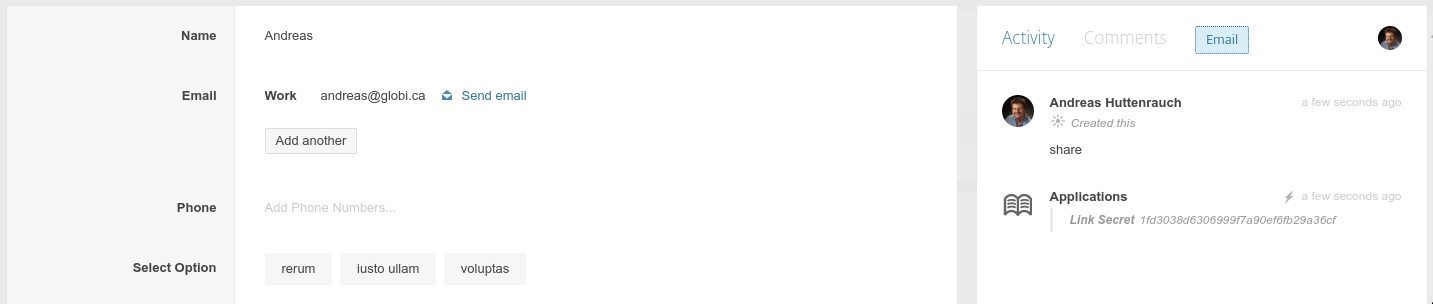
First, we’re going to need an app in Podio. For this example, we have an Applications app with some fields we want people to fill in.
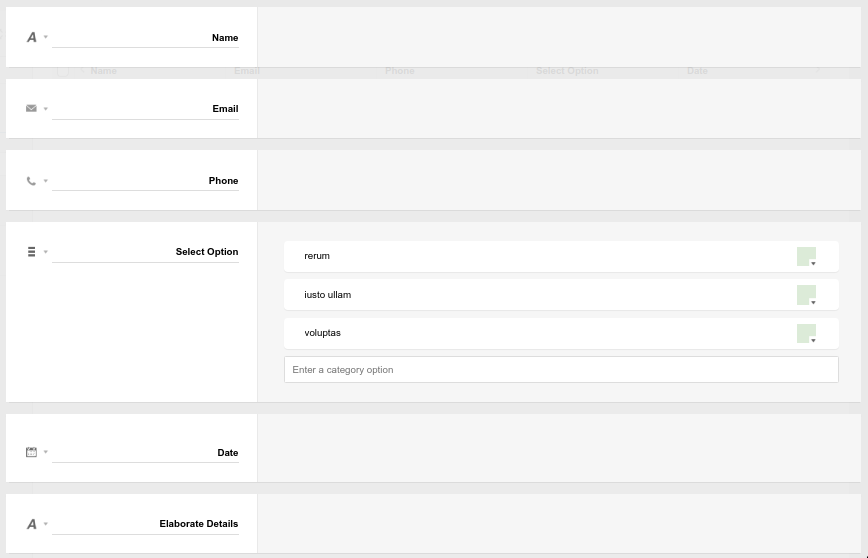
The actual fields are not important at all. This is just what’s being used for this example.
The Secret Link
What is important though, is that we have a secret link we can send each contact to be able to fill in the form. To store the “secret” part of the link, we’ll create a single-line text field.

The Mini App Portal
Next, let’s set up the Mini App in ProcFu to allow editing of these records.
For authentication, we’ll select “Link in URL” with this “Applications” app, and the “Link Secret” field for the password. We also need to choose the name of the URL parameter we’re going to be passing the password in (in this case “foo”).
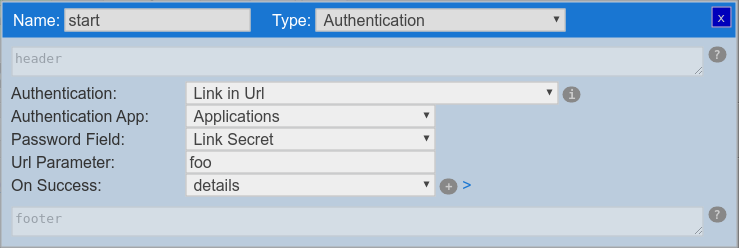
To make creation of the editing screen easier, we’ll again click on the “+d” icon by the linked app name. This will create a new screen with some of the fields already pre-filled.
Now we just need to select “Edit” as the item mode, and choose which fields to show and/or lock.
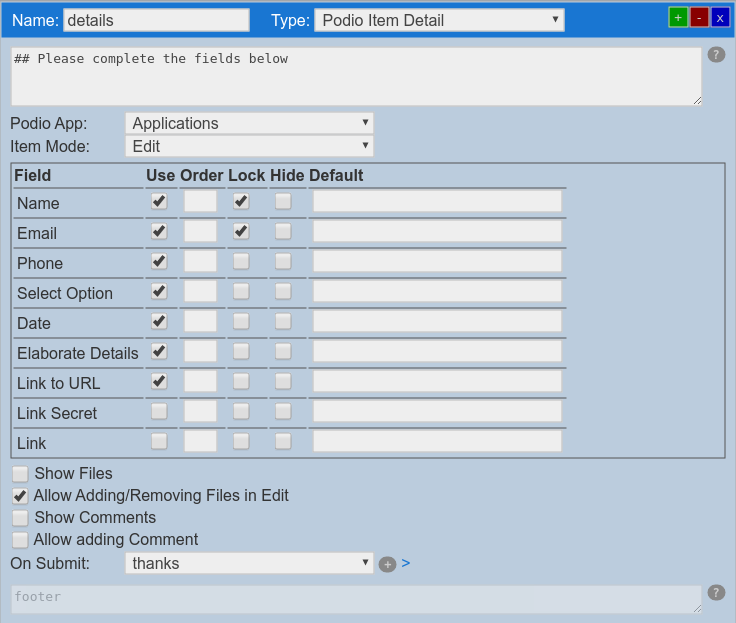
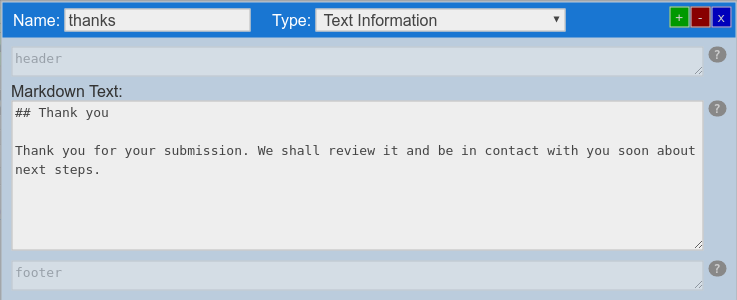
To make the user experience nicer, we’ll also add a text screen with some confirmation message, and link it to the on submit event of the previous screen.
Lastly, we’ll tell the Mini App to start on the details screen.

Note that you could easily split up the form into multiple pages. All you’d need to do is create multiple screens on the same app, and specify which screen to go to on submit of the previous one. This is a great way to chunk the form data.
Creating Links
Our mini app won’t work just yet. If you go to the URL of the app, you’re going to get an error.

This is because we’re missing the password which the app is expecting to be in the “foo” URL parameter.
In order to automate creating and sending of links, we’re going to leverage GlobiFlow. A simple flow to trigger when someone types in a comment with “share”, to create the link and send it.
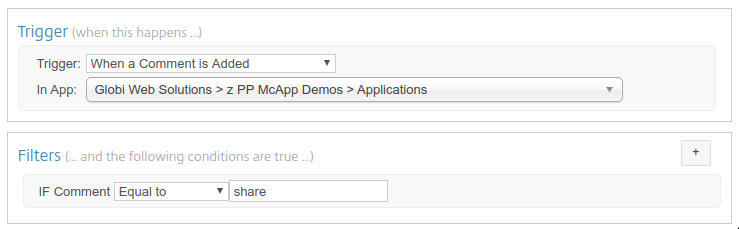
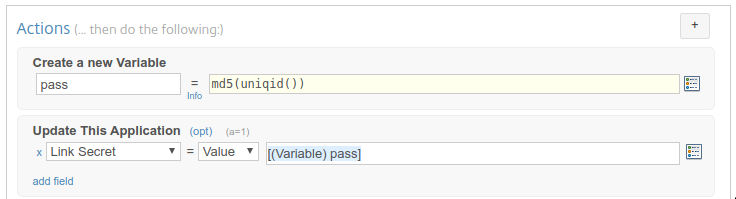
To create a password, we’re going to use a variable with md5(uniqid()) and save it to the item.
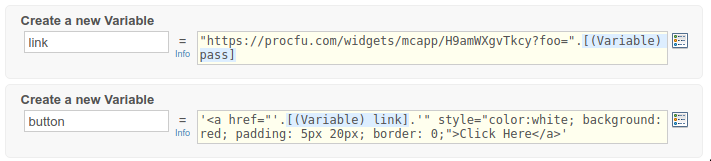
To create a link, we’re going to use a variable and append ?foo=[password] to the Mini App’s URL, and to make things a little more pretty, we’ll create an HTML button-styled link.
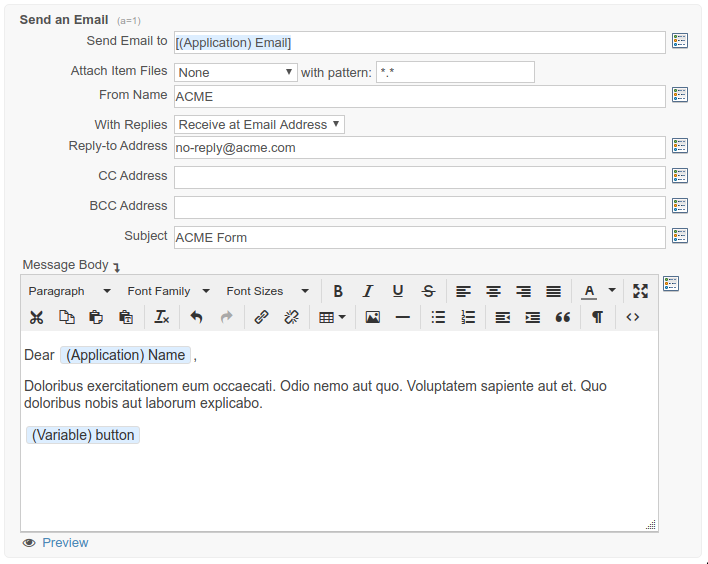
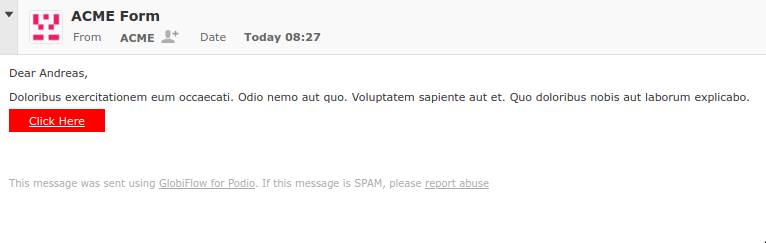
Lastly, we’re going to send an email to the person on the application with some welcome text and the button to the form.
Walk-Through
Now that everything’s set up, we can see it in action.
When a new application is created (however that happens is up to you), and someone adds a comment of “share”, the automation will create the password and email the link to the contact on the record.
Here’s the received email.
And when the link/button is clicked on, the user will be presented with a form to edit the fields we configured earlier.
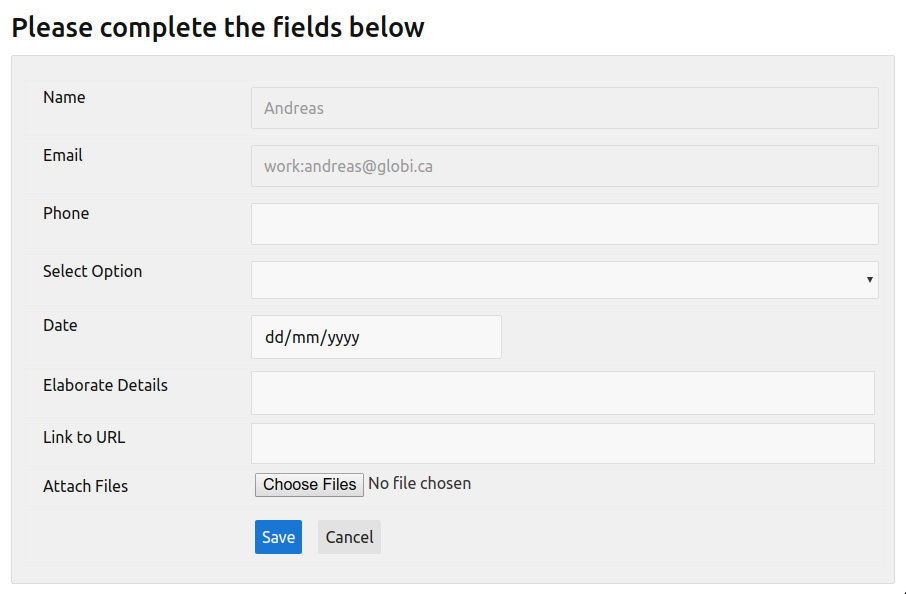
They can only edit fields we allowed them to change.
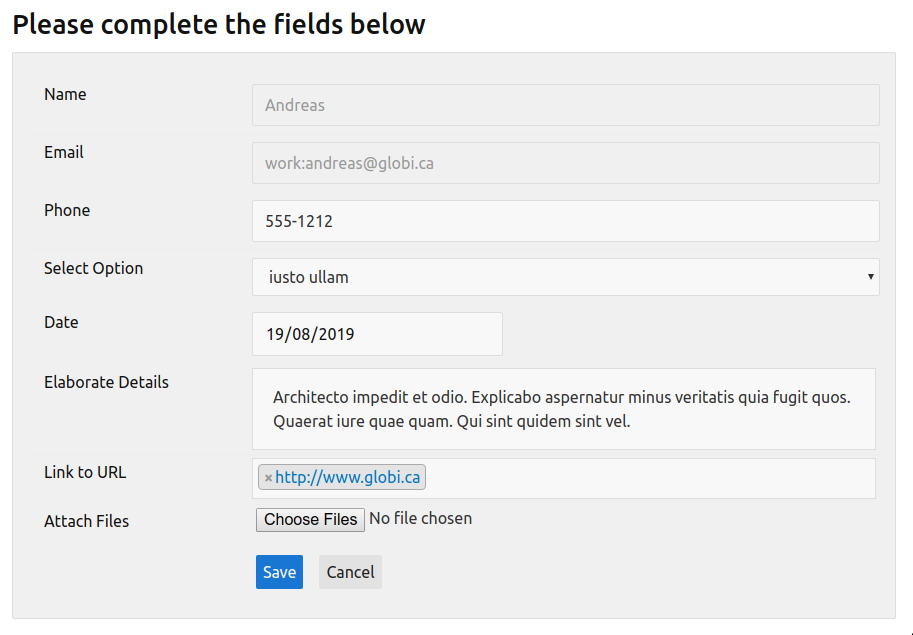
And when they save, they will be presented with our text confirmation screen.

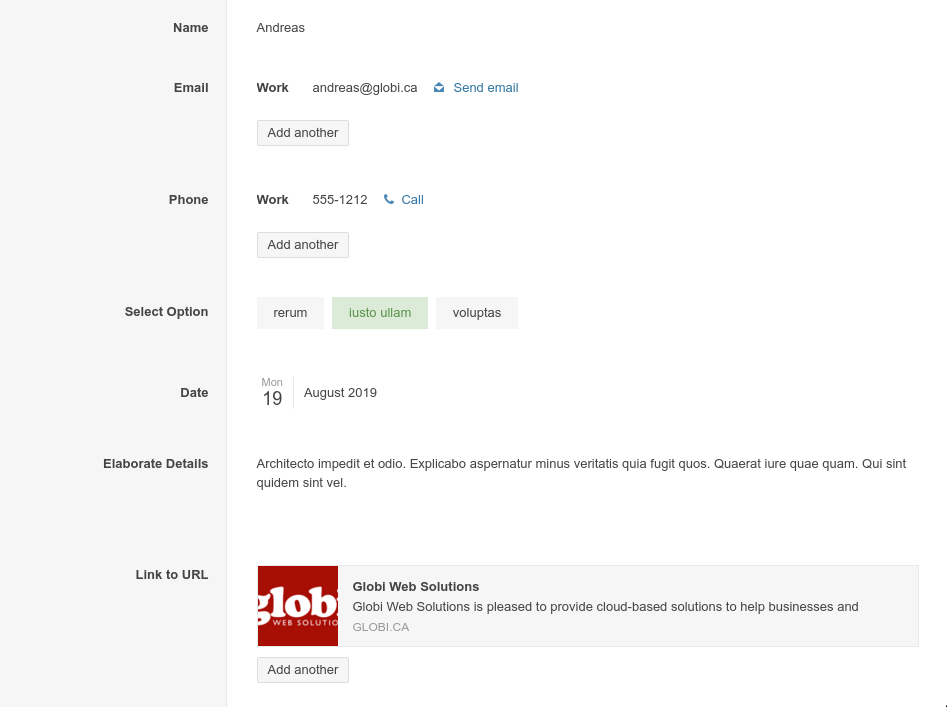
And the record will have been updated accordingly in Podio.
If you want to prevent further changes, you can simply automate removal of the Link Secret at this point using GlobiFlow again.